 LinceCAD
The user interface
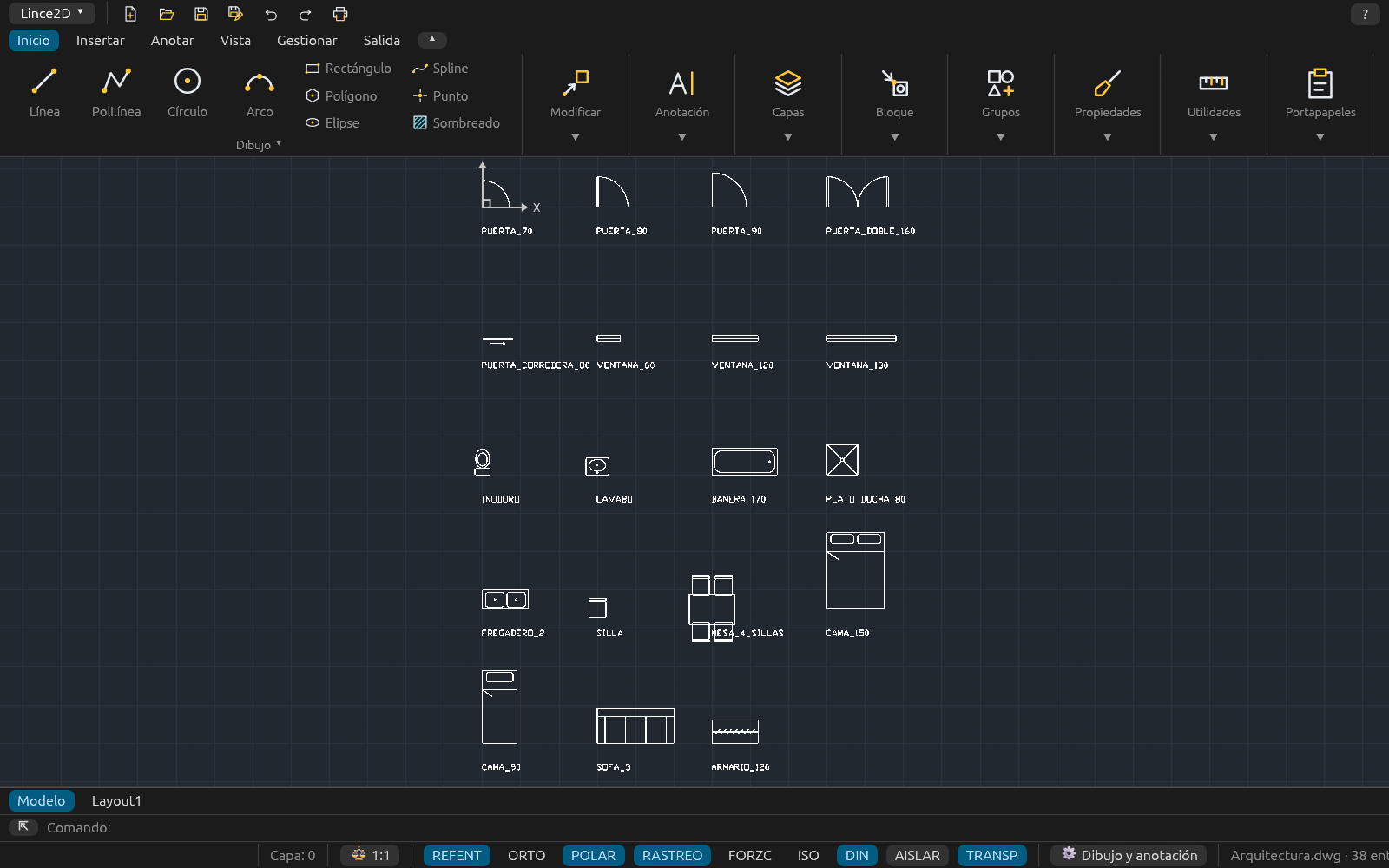
From top to bottom, the LinceCAD window has the ribbon (or the menus and toolbars of the Classic workspace), the drawing area, the layout tabs, the command line and the status bar. Palettes (Properties, layers, blocks...) open when you need them and can float over the drawing or be docked at its sides.
Workspaces
A workspace is a named layout of the interface. Two are built in:
- Drafting & Annotation (ribbon): the ribbon with its tabs, the LinceCAD ▾ application button and the Quick Access toolbar (New, Open, Save, Save As, Undo, Redo and Plot).
- Classic (menus and toolbars): the traditional menu bar (File, Edit, View, Insert, Format, Tools, Draw, Dimension, Modify, Window and Help) and the Standard, Draw, Modify and Layers toolbars.
Each workspace also remembers the ribbon state, how the command line is placed and which palettes are open, on which side and how wide. The ⚙ gear on the status bar shows the current one and, when clicked, lists them all to switch with one click. WSSAVE saves the current layout with a name and WORKSPACE renames and deletes them. They are kept when the program closes.
Both built-in workspaces give access to the same commands. Commands that are not finished yet are dimmed; hovering over any button shows its description.
The ribbon
| Tab | Panels |
|---|---|
| Home | Draw, Modify, Annotation, Layers, Block, Groups, Properties, Utilities and Clipboard |
| Insert | Block, Attributes, Reference, Content and Geolocation |
| Annotate | Text, Dimensions, Leaders, Tables and Annotation Scaling |
| View | Navigate, Isolate, Palettes, Coordinates and Interface |
| Manage | Drawing, Applications and Customization |
| Output | Plot and Export |
Every available command is in some panel. Each panel shows its large buttons and two columns of small ones; if it has more, the ▾ in its title expands the rest. While you edit a block, the Block Editor contextual tab appears (see Blocks).
When the window is narrow, the panels that do not fit collapse, from right to left, into a button with their icon, title and ▼ that drops the panel down below.
Minimizing the ribbon
The ▴/▾ button to the right of the tabs cycles through the ribbon states; right-click it to choose one directly:
- Show Full Ribbon: tabs and panels.
- Minimize to Tabs: only the tabs; clicking one drops its panels over the drawing, and they fold away when you choose a command or click elsewhere.
- Minimize to Panel Titles: the tabs and the titles of their panels; each title drops its panel down.
The command line
The keyboard always goes to the command line, as in AutoCAD: just start typing.
- It shows the last three lines; the text window (F2) has the full history.
- While you type a command name, a list of up to 8 suggestions with their descriptions appears: choose with the arrow keys and complete with Tab or a click.
- Enter or Space sends what you typed (Space does not while you are typing text). Enter on an empty line repeats the last command.
- The options in brackets in the prompt are shown in blue and can be clicked; typing their capital letters also works.
- You can type the command name, its alias (built-in or your own) or the global English name with
_(_LINE) in any language. - A line that starts with
(is evaluated as AutoLISP (see AutoLISP).
Floating command line
The ⇱ button at its left undocks the command line: it becomes a window without a title bar that you can drag anywhere and widen by its edges. While it floats, the ◐ button sets its transparency (opacity from 10 to 100 %); it turns opaque when the mouse is over it. ⇲ docks it again below the drawing.
Palettes
| Palette | How to open it |
|---|---|
| Properties | PROPERTIES, Ctrl+1 or double-click an object |
| Layer Properties Manager | LAYER or the button next to the layer control |
| Blocks | INSERT |
| DesignCenter | ADCENTER |
| Tool palettes | TOOLPALETTES |
| External references and images | XREF |
Each one has buttons in its header to place it:
- ◂ / ▸ (Dock left / Dock right): the palette docks on that side and the drawing narrows to make room. Several palettes on the same side share its height. Drag the edge facing the drawing to change the width.
- ◻ (Floating): it becomes a floating window again.
- 📌 (Auto-hide), docked only: the palette folds into a vertical tab at the edge of the window and slides out when the mouse passes over it.
Customizing
CUI changes the commands of any ribbon panel or Classic toolbar (add, remove and reorder) and assigns your own keyboard shortcuts. Your own aliases are edited with ALIASEDIT and saved in lince.pgp, with the syntax of AutoCAD's acad.pgp (one can be imported). Everything is saved in the configuration folder (%APPDATA%\lince; on Linux, ~/.config/lince), together with the workspaces.
The status bar
| Item | What it does |
|---|---|
| Coordinates | Cursor position. Click to add latitude and longitude when the drawing has a coordinate system |
| Layer | Current layer |
| ⚖ 1:1 | Annotation scale (CANNOSCALE); click to choose another one from the drawing's list |
| OSNAP | Object snaps (F3); right-click to choose the modes |
| ORTHO | Ortho mode (F8) |
| POLAR | Polar tracking (F10); right-click for the increment angle |
| OTRACK | Object snap tracking (F11) |
| SNAP | Snap the cursor to the grid (F9) |
| ISO | Isometric drafting, with the current plane (F5 switches planes) |
| DYN | Dynamic input (F12) |
| ISOLATE | Isolate or hide objects; on while there are hidden objects |
| TRANSP | Show or hide the transparency of objects and layers (TRANSPARENCYDISPLAY) |
| ⚙ | Current workspace; its menu switches it, saves it and opens the customization |
Next come the program messages and, at the far right, what was drawn in the last redraw and how long it took.
Drawing tabs and layout tabs
With two or more drawings open, their tabs appear above the drawing area; Ctrl+Tab and Ctrl+Shift+Tab switch to the next and previous one. Below the drawing are the Model tab and one tab per layout (see Layouts and plotting).
Shortcut menu and double-click
Right-clicking in the drawing area opens a menu that depends on what you are doing:
- With a command running: Enter, Cancel and the options of the prompt.
- With no command: repeat the last command, the usual editing commands if something is selected (Erase, Move, Copy, Scale, Rotate, Mirror) and Deselect All, plus Undo, Redo, Zoom Extents, Select All and Properties.
Double-clicking an object opens its editor: a text, TEXTEDIT; a hatch, HATCHEDIT; a block with attributes, ATTEDIT; a block without attributes, BEDIT; a table cell, TABLEDIT. For any other object it opens the Properties palette.
You can also open a drawing by dragging the file onto the window.